Windows · free while in beta

Your scattered
PCs, as one

Where a remote-desktop tool connects you to one distant machine, IdleLink makes all of your PCs one group. No NAS to buy — the machine sitting idle becomes storage, and backups spread themselves across the ones you already own.

  • 5-minute install
  • Add a PC with one invite code
  • Files go straight between your own PCs
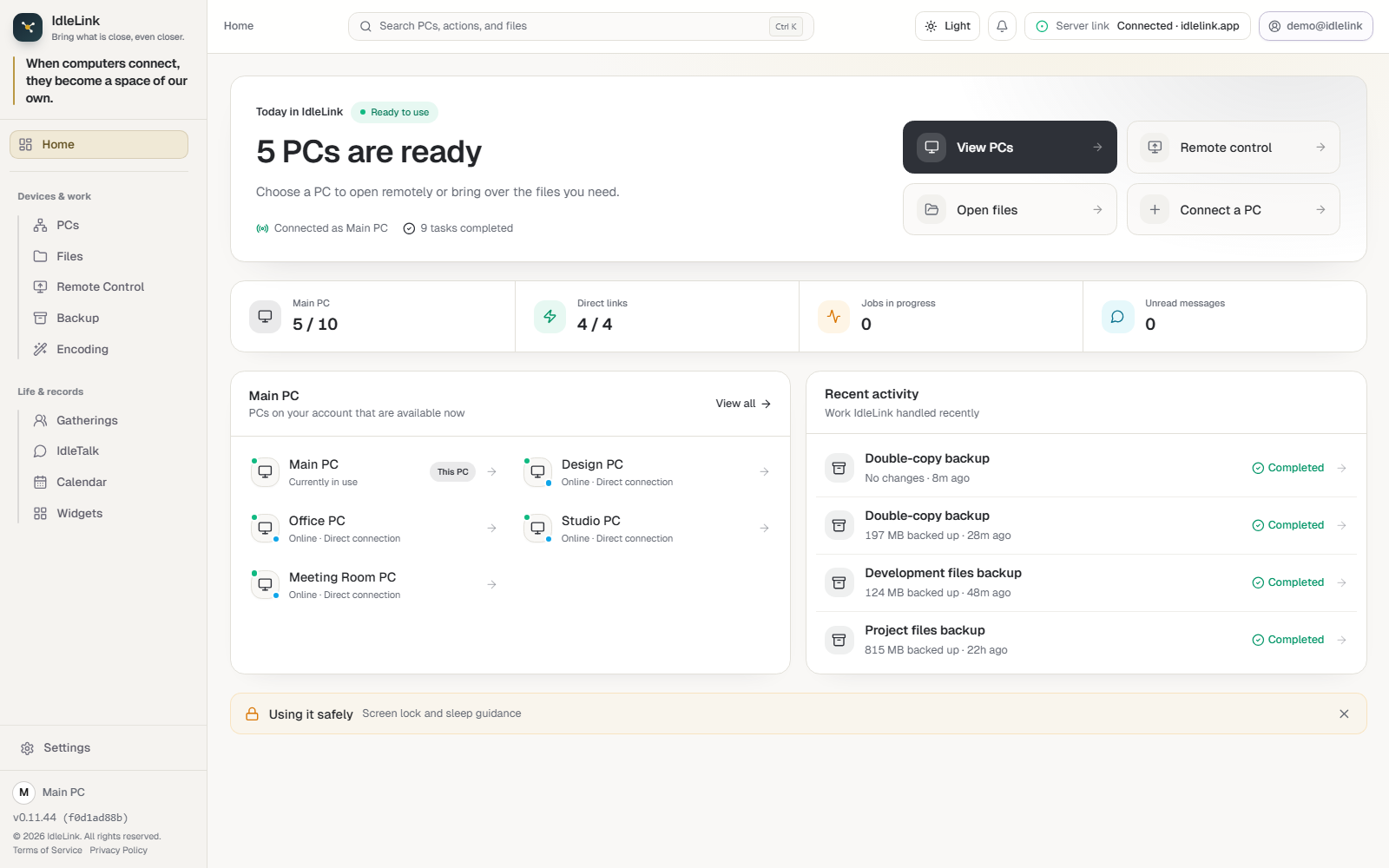
IdleLink — Connected PCs
Connection map Connected · 5 of 10
DirectRelayedConnecting

The real app’s Connected PCs screen. Line colour shows how each one connected.

One installand most of it just works·No cloud storage — files move between your machines·Works offline on one router, internet or not·Up to 10 PCsin a group

1 What is this

Computers that worked alone,
now working as one team

The PCs you use live separate lives. Photos on this one, the file you were working on over there, and neither machine knows the other exists. IdleLink lays a roadbetween them.

Is this a NAS?

A NAS means buying a new box and keeping your files on it. IdleLink makes the PCs you already ownstorage for each other. There is nothing to buy.

Is this a cloud drive?

A cloud drive keeps your files on someone else’s serverand bills you every month. With IdleLink they move between your own PCsonly. There is no upload destination.

Is this remote desktop?

Remote desktop connects you to one distant machine. IdleLink groups all of your PCs together, and viewing a screen is one of the things that group can do.

This fits you if

  • You use two or more PCs(a laptop and a desktop is plenty)
  • You are not sure which machine a photo or a video ended up on
  • You know you should back up, but plugging in the drive never happens
  • You look after a relative’s PC from time to time

Even with one PC, the widget board, all four backup modes, photo shrinking and the lunar calendar all work just as they would (see what one PC gets you). The features that genuinely need two — remote control among them — are waiting for whenever a second PC turns up.

2-minute film

Bringing what matters
closer

There is a computer still good enough to use asleep in a drawer, in the corner of a room. Two minutes on what IdleLink is for.

English narration with subtitles. Best watched with sound on.

2 What you can do

More machines,
more it can do

All on one screen. Open the cards you want to know more about.

Remote control

The PC you left at home, from where you are

Put the office PC’s screen on your laptop at home and use its mouse and keyboard as if you were sitting there. Text you copy pastes across. Files move by opening the other PC’s folder in the file explorer.

Office PCDirect · 1920 × 1080
  • No IP address or port to type
  • Copy and paste works across
  • The other side has to accept
Backup · storage

You already own the storage — no NAS needed

The old PC you stopped using because it was slow still has a large disk. Pool that free space and let backups run on their own, spread across several machines.

3 backup plansspread across the machines sitting idle2.1TB free
Photo library 🔒412GB
→ Living-room desktopDone yesterday 03:00
Work files 🔒86GB
→ Dad’s PCRunning now
Desktop · Documents12GB
→ Living-room desktopDone today 07:00
  • Locking hides file names and folder structure too
  • Only the changed parts are sent
  • Restore from any of your PCs
Offline

There is a mode for places with no internet at all

Switch the connection mode to “no internet” and only the PCs on the same router talk to each other. One machine becomes the hub and the rest attach to it, so nothing goes out to the internet at all.

  • PCs on the same router
  • Nothing leaves the network
  • Outages · air-gapped sites · factories · labs

Keeps working through an outage, and on a network with no way out. Built for the factory floor and the lab, where internet is not an option.

🌐 Over the internet (anywhere)defaultConnects wherever you are — home, office, on the move.
🔒 No internet (same place)Uses no internet at all. Only PCs on the same router connect.
Widget board

The widget board is yours to arrange

18 widgets — switch on the ones you use and move what you check often to the top. Pick each one’s size and shape too.

Clock
9:2406
Tuesday, 28 July 2026
Weather · Seoul
☀ 29°
Clear · feels like 31°
To-do1 of 3 done
Check the photo backup
Queue the video encode
Look at Dad’s PC
Countdown
Family trip
2026-08-09
D-12
Anniversary
2026-09-14
D-48
Markets · FX
S&P 5002,784.31 +0.82%
NASDAQ18,402.7 -0.41%
🔥 Habits
Drink water
since 21 July · day 8
🔥 8
Walk
since 26 July · day 3
🔥 3
Today at a glance
WeatherClockMarkets · FX
My notes
To-doNotesCalendar
Dates · habits
CountdownHabitsTimer
Tools
CalculatorUnit converterShortcuts
Something to read
Top 10 newsQuote of the dayWorld clock
For fun
Lottery numbersRandom pickerRaise a pet
Who you open it to

Lending a laptop to your mother is not the same as handing over one file

Most remote tools ask one question — allow this device? — so a parent and a stranger end up with the same standing. IdleLink keeps three separate places.

My PCs
Machines you own

PCs signed in with the same account — home desktop, work PC, laptop, all yours. Linked once and they stay linked.

  • Remote control
  • Files and backup freely
  • Share heavy jobs
Linked once, stays linked · up to 10
Our PCs
Family · partner

A lasting link with someone on a different account — looking after a parent’s PC, sending photos to family. The link holds once made, and each new remote session needs their approval and a 6-digit PIN.

  • Remote control (on approval)
  • Desktop, Documents, Downloads by default
  • Write access per folder
  • Share a calendar
Confirmed once, then it holds · up to 10
Guest
Someone passing through

Opens briefly and closes itself — for handing a colleague one file. A day after connecting it drops on its own, with nothing to tidy up.

  • Desktop, Documents, Downloads by default
  • Read-only, always
  • Expires a day after connecting
Expires on its own · up to 10

The three places never mix. A folder opened to a guest is not visible to Our PCs, and someone linked as Our PCs never lands inside My PCs.

One screen, two PCs

Split one monitor down the middle,
and work two PCs as one

The PC in front of you on the left, the distant one on the right. Both machines end up on one desk. Text copied on either side pastes on the other, and filesmove by opening the other PC’s folder in the file explorer.

This PC
Copy here
Office PC
Paste there
Copied text

This is how the person who built it works every day — one wide monitor split in half, home PC and office PC side by side.

When you would use it

You have probably been here before

Working from home
Remote control
HomeOffice

The file you left at the office

Wake the office PC from home and use it as it is. Nothing had to be moved in advance.

Family
Remote control
My roomParents’ place

Fixing a parent’s PC

No more explaining it down the phone. See their screen and click it yourself.

Photos · files
Automatic backup
My laptopOld desktop

Putting the old PC back to work

Slow, but the disk is big. Back the photo library up to it and pull things back when you need them.

Sharing
Sending files
This PCA friend’s PC

Sending files to family and friends

No size limit and no zipping first. Invite them as Our PCs or as a guest.

If any of that sounded like you

Five minutes to install, free while the beta is open. Or keep reading.

Get started free

Even with one PC

It shines with two or more, butwhat a single machine can do adds up to
this much

What needs a second PC is remote control · opening another PC’s files · spread backups · messaging · offloading. Everything else runs on one machine — backup just needs somewhere to put it(an external drive or another drive on the same PC).

18 widgets

Only what you need today, on one screen. Six groups, so you never lose track of what you switched on.

  • Move what you check often to the top
  • Pick each one’s size and shapeto suit you

All 18 run on a single PC

Four kinds of backup

An external drive or a second drive is all it takes. Choose what to protect and the app picks the method.

  • Mirroralways an up-to-date copy
  • Incrementalstacks by date so you can go back
  • Encryptedhides file names and folder structure too
  • Compressedone small, fast bundle

Schedule it once and forget it · restore onto a new PC straight from the drive

Shrinking photos and video

Photos and video in one list, processed together, each with its own settings.

  • Photos — a lot / some / a little, or type your own
  • Video — choose codec, resolution and quality per file
  • When it finishes it tells you how much space you saved

For files already well compressed it warns you first that redoing them can make them bigger

A calendar that knows lunar dates

Events, anniversaries, to-dos and stickers in one calendar.

  • Set an anniversary to the same lunar date every yeara grandparent’s birthday
  • Public holidays marked · lunar date shown in every cell
  • From three days out to the day itself,waiting for you when you open the app

So the date you must not forget is not something you have to remember

A file explorer split in two

Windows Explorer has no split view, so you end up with two overlapping windows. Here one screen becomes two panes and you can see both while you move things.

  • Left and rightor top and bottom— drag the divider to set the ratio
  • Copy on one side, paste on the other
  • For the fiddly jobs — sorting photos, moving a pile of files

Search finds a file when you only remember part of its name

Looking after this PC

On from the moment you install. Nothing to configure.

  • Monitor sleepfor when another program keeps Windows awake
  • This PC’s status at a glance on the dashboard

For the PC that stayed lit all night because the screen never slept

From two PCs this is what gets added — and where IdleLink really earns its place
Remote controlOpen another PC’s filesSpread backups across machinesMessaging · sending filesHand off heavy jobs

When another PC comes along, link it then. It takes pasting one invite code, and nothing you were already using changes.

3 How to start

Two double-clicks and you are running

You do not need to know your way around a computer. The first two steps are all it takes; the third is only for when you add another PC.

1

Download and double-click about 5 min

One installer. Nothing else to fetch, nothing to choose.

2

Sign in once

Sign in with your account. That is how this PC is marked as yours.

3

Paste a code optional

Only when you add another PC. Copy the code the first one shows and paste it into the second.

And here is what you never have to doFind an IP addressOpen a portConfigure a firewallTouch the routerBuy a NAS

If you would rather see each step with pictures, there is a guide for people starting out.

Less to it than you expected

Download, install, sign in. Below is the answer to “is this safe”.

Get it for Windows

4 Is it safe

Powerful, and built so it does not open easily

This is a powerful tool — it opens your PC remotely and moves your files. So “what is yours stays on your machines” was the default from the start.

Files move between your own PCs

Photos, screens and messages — the contents are not stored on our servers. They travel between your machines, and when they do pass through a relay they are encrypted in transit and nothing accumulates on the server. If encryption fails, the transfer is refused outright— there is no path where it goes out in the clear by mistake.

What the server does is introduce the two sides

Its real job is carrying the signal that lets your PCs find each other. For people whose networks refuse a direct connection, we relay a certain amount for free. Even then the files are encrypted, so not even we can open them, and remote-control video does not go through our servers at all — we pass the signal, the picture goes straight between the PCs.

A remote session opens only when you allow it

For anyone to see your screen you have to approve it at that moment (and with a different account, a 6-digit PIN each time you connect), and a red banner stays on your screen for as long as it runs. There is no back door.

It works where there is no internet

Sign in over the internet onceand after that, even in a factory or lab with no connection, offline modekeeps the PCs on one router talking.

If that still worries you, run it in offline mode, where our relay cannot be involved at all. Nothing leaves the network.

One thing stated plainly — the contentsof files, screens and messages are not stored on our servers, but a minimum — signing in, which of your devices are online — is processed so the service can run. What is processed and why is set out in full in the Privacy Policy(Korean), and the longer explanation is on the security page → .

Make your scattered PCs one, today

One installer. Five minutes. Everything is free to use while the beta is open.

Nothing extra to download during install · one account, many PCs · easy to remove any time